Create S3
Create S3
- Sign in to the Amazon Web Services (AWS) S3 management page at https://console.aws.amazon.com/s3/.
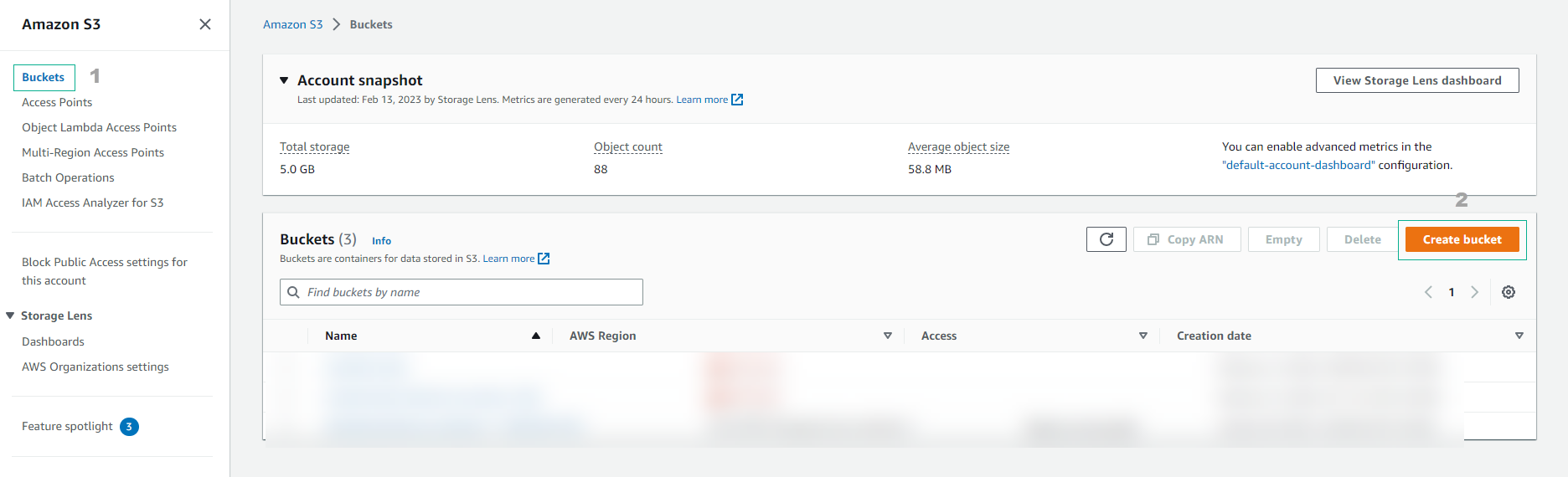
- Click the Create bucket button to start the process of creating a new bucket.
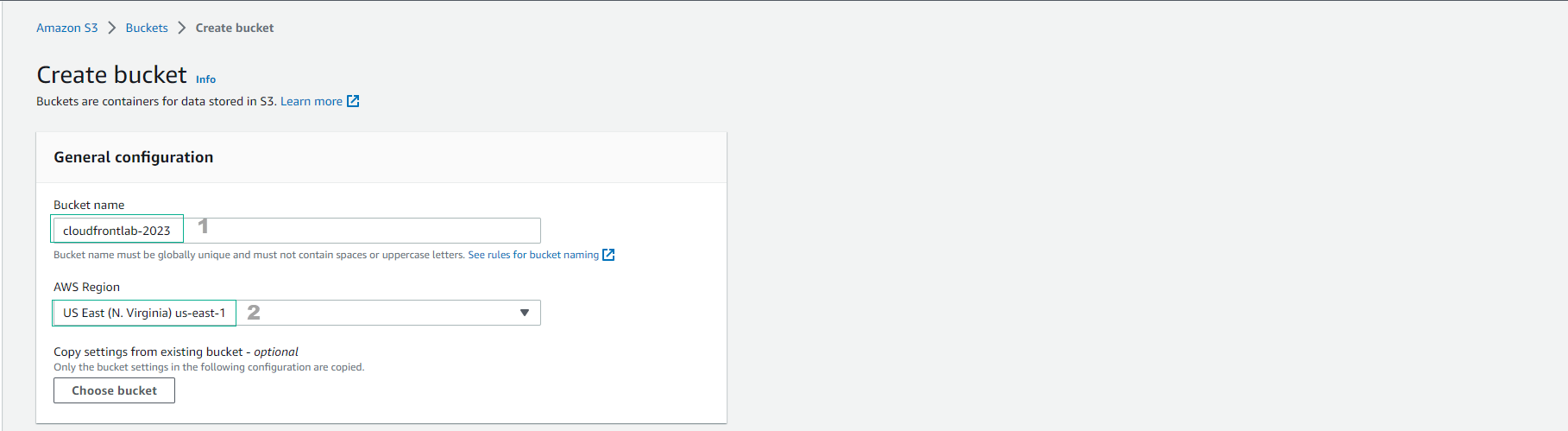
- Enter the bucket name. The bucket name must be unique throughout the S3 system and cannot contain spaces.
- Select the storage area (Region) for the bucket. The storage area will affect the access speed and hosting price. You should choose an area close to the user to optimize access speed.
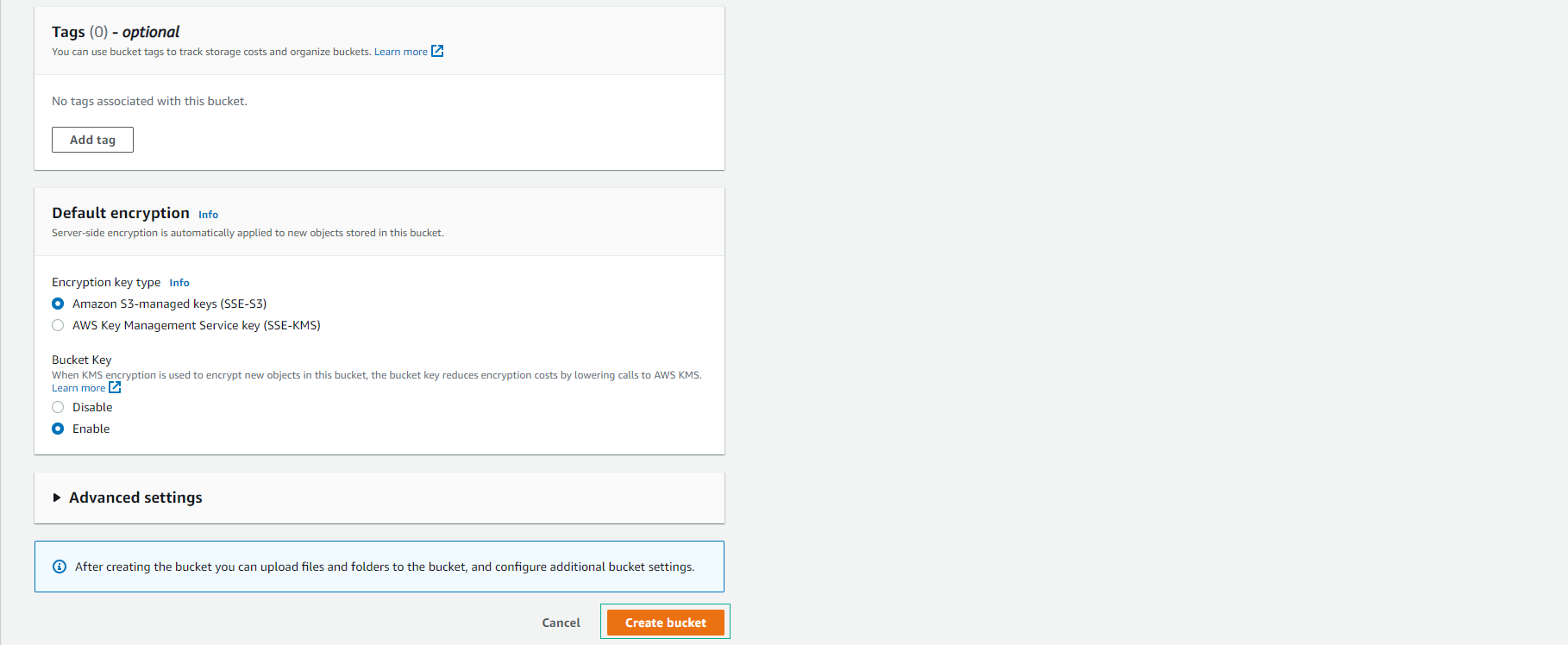
- Select other options as needed. AWS provides many options for configuring the bucket, such as encrypting data, sharing the bucket with other users, configuring access permissions, and more.
- Click the Create bucket button to complete the bucket creation process.
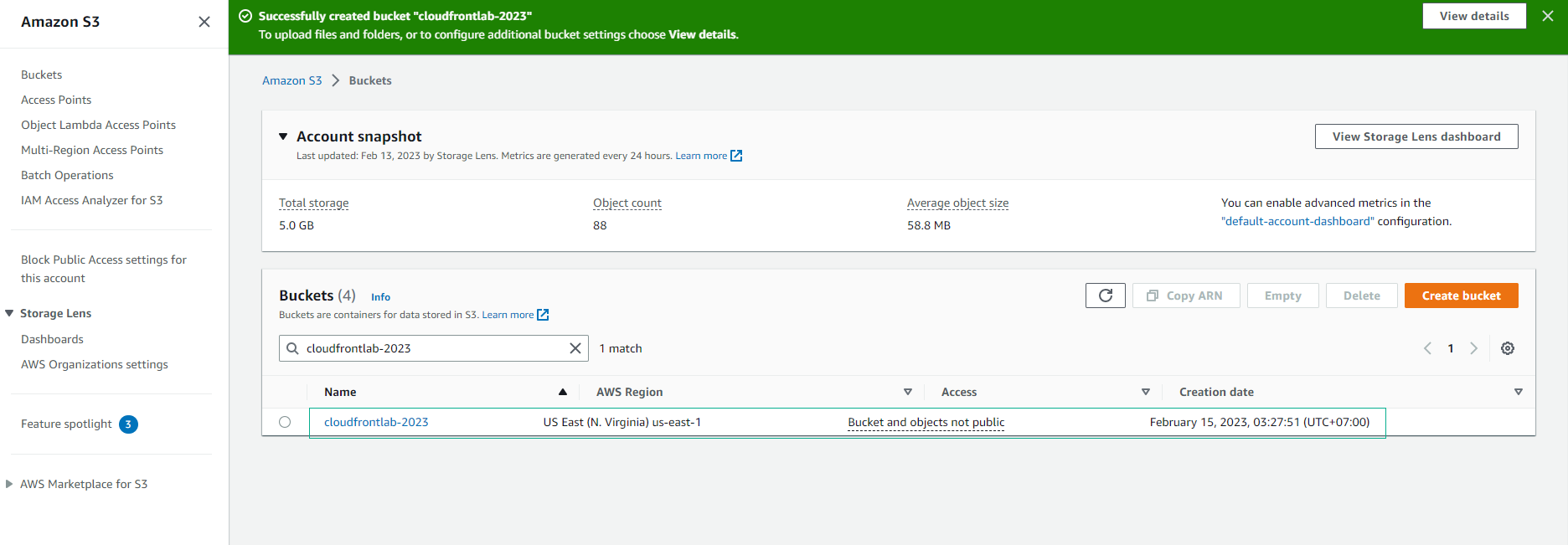
After creating the bucket, you can access the bucket and add, delete, and edit files in it. To access the bucket, you can use the browser or the AWS SDK management tools.
Instructions to create index.html file on Amazon S3
- Create file index.html
- Open a text editor on your computer and create a new file named index.html. Paste the following HTML content into this file:
<!DOCTYPE html>
<html lang="en">
  <body>
    <table border="1" width="100%">
      <thead>
        <tr>
          <td><h1>CloudFront Lab</h1></td>
        </tr>
      </thead>
      <tfoot>
        <tr>
          <td>Immersion Days - Edge Services - Module 1</td>
        </tr>
      </tfoot>
      <tbody>
        <tr>
          <td>Response sent by API</td>
        </tr>
      </tbody>
      <tbody>
        <tr>
          <td>
            <iframe src="/api" style="width: 100%; height: 100%"></iframe>
          </td>
        </tr>
      </tbody>
    </table>
  </body>
</html>
- Save the index.html file to an easy-to-remember address on your computer.
- Upload index.html file to Amazon S3
- Go to the Amazon S3 console and select the bucket that was created.
- At the bucket interface, click the Upload button to upload the index.html file.
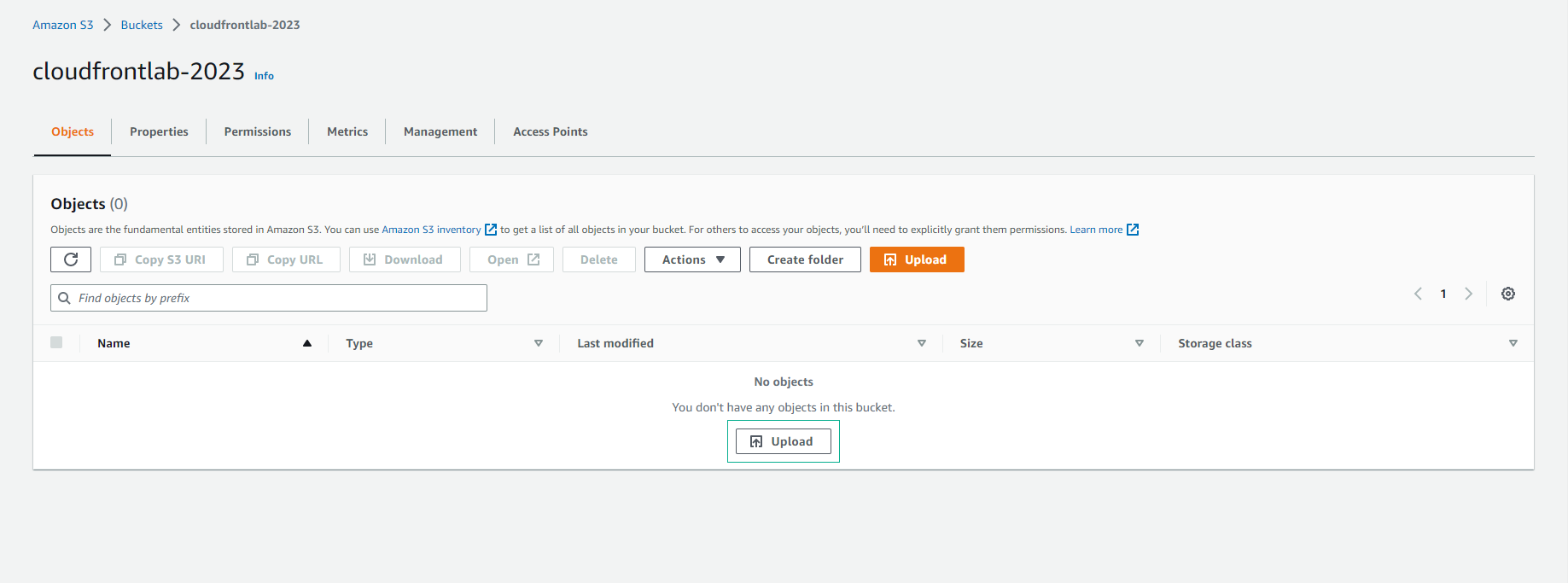
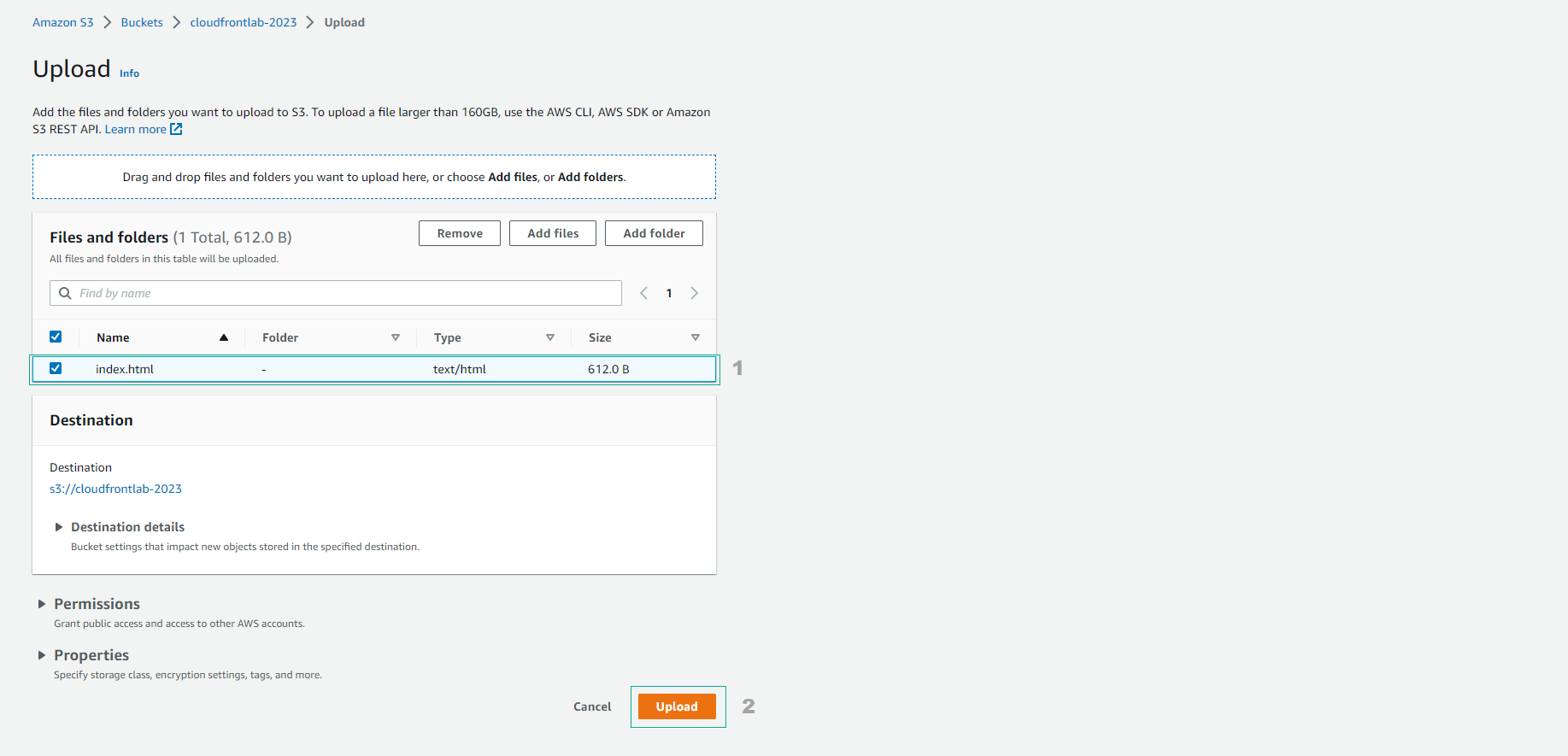
- In the next window, click the Add files button and select the index.html file from your computer. Then, click the Next button to go to the next page.
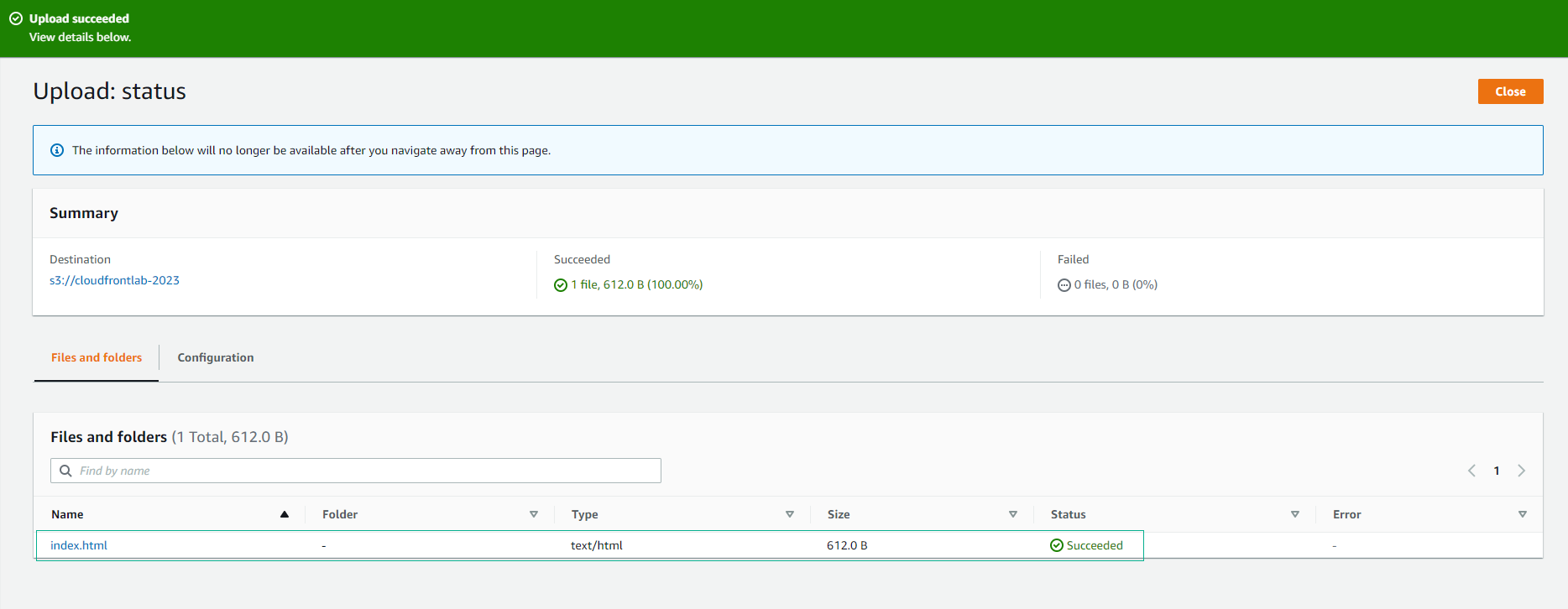
- On this page, leave all default settings and click the Next button again. Continue to set other settings and click the Upload button to complete the upload.
- Check the index.html . file
- When accessing the index.html file using the Object URL provided by Amazon S3.
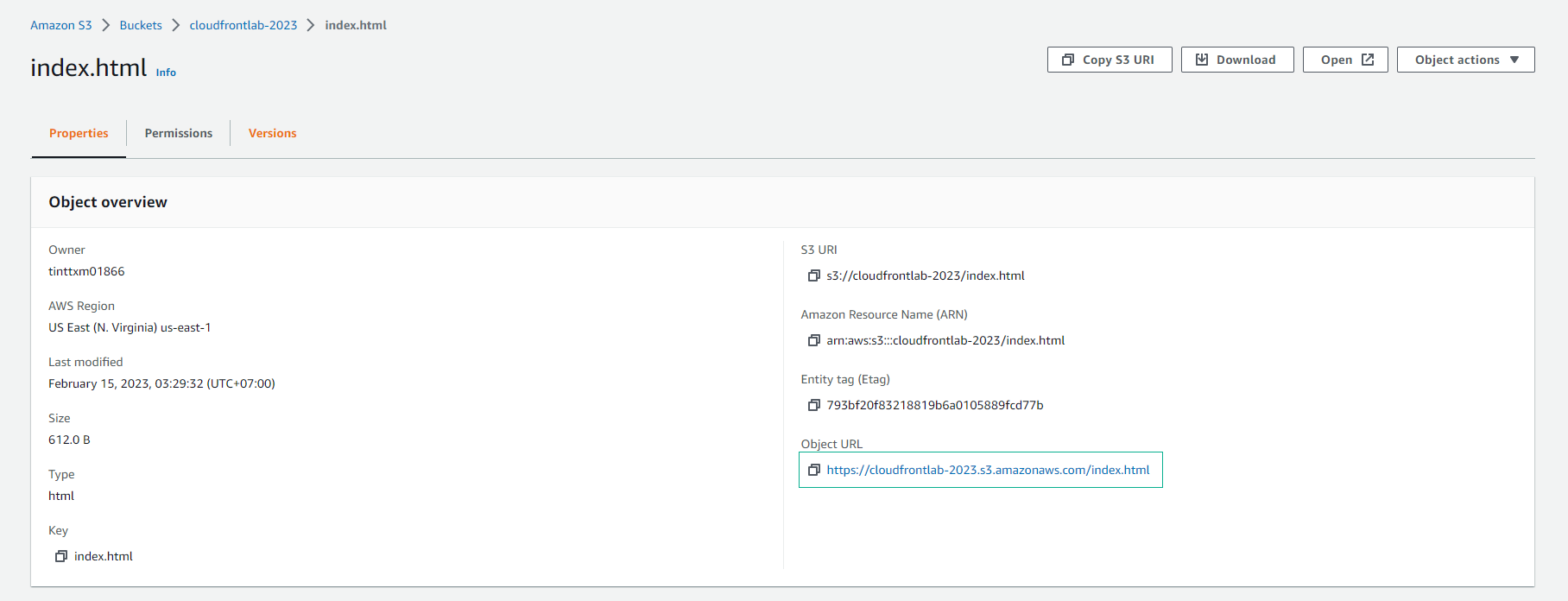
- You will see an access denied message because the file is not configured for public access.
